block.github.io
Goose
An extensible AI agent from Block for development and other computer workflows.
https://block.github.io/goose/About This Resource
An extensible AI agent from Block for development and other computer workflows. It connects language models to tools and integrations so it can work through tasks that require multiple actions.
Saved Notes
Original notes saved with this link. They may describe an earlier version.
https://block.github.io/goose/docs/quickstart/
Assessment: Hold
This app looks promising since it’s basically a tool-using AI UI wrapper that has a CLI and a desktop app, but it has signs of being too fresh and half-baked and lacks quality-of-life features (i.e., a global keyboard invoke, or basic requerying and copy-paste or drag and drop support for screenshots).
Goose in 5 minutes
Supported Environments
The Goose CLI currently works on macOS and Linux systems and supports both ARM and x86 architectures. However, the macOS desktop app is not currently supported for x86. On Windows, Goose CLI can run via WSL. If you'd like to request support for additional operating systems, please vote on GitHub.
Goose is an open source AI agent that supercharges your software development by automating coding tasks. This quick tutorial will guide you through getting started with Goose!
You can use Goose via CLI or Desktop application.
Configure Provider
Goose works with supported LLM providers. When you install Goose, you'll be prompted to choose your preferred LLM and supply an API key.
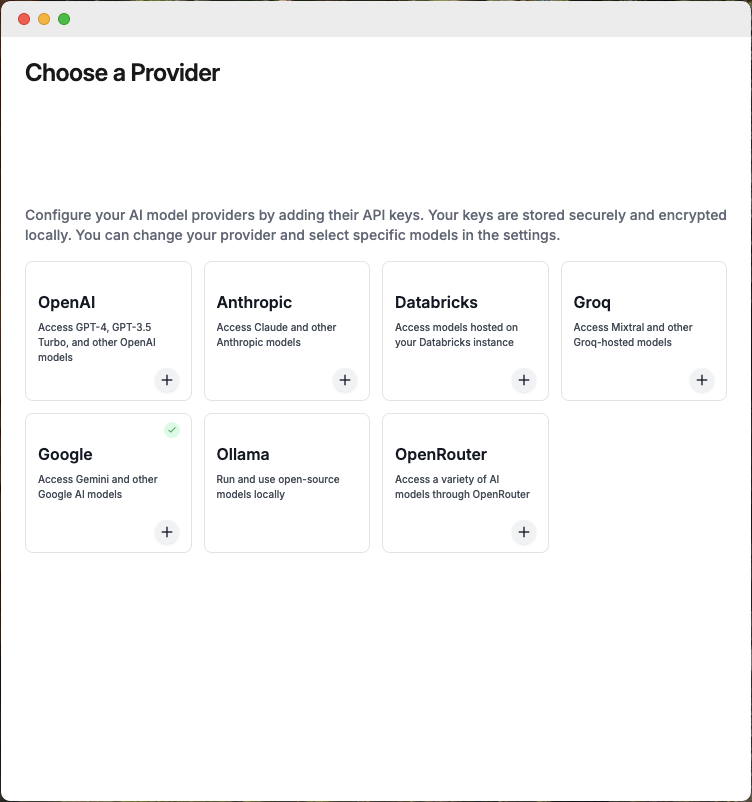
Set Up a Provider UI
Billing
Google Gemini offers a free tier you can get started with. Otherwise, you'll need to ensure that you have credits available in your LLM Provider account to successfully make requests.
Some providers also have rate limits on API usage, which can affect your experience. Check out our Handling Rate Limits guide to learn how to efficiently manage these limits while using Goose.
Model Selection
Goose relies heavily on tool calling capabilities and currently works best with Anthropic's Claude 3.5 Sonnet and OpenAI's GPT-4o (2024-11-20) model.
Start Session
Sessions are single, continuous conversations between you and Goose. Let's start one.
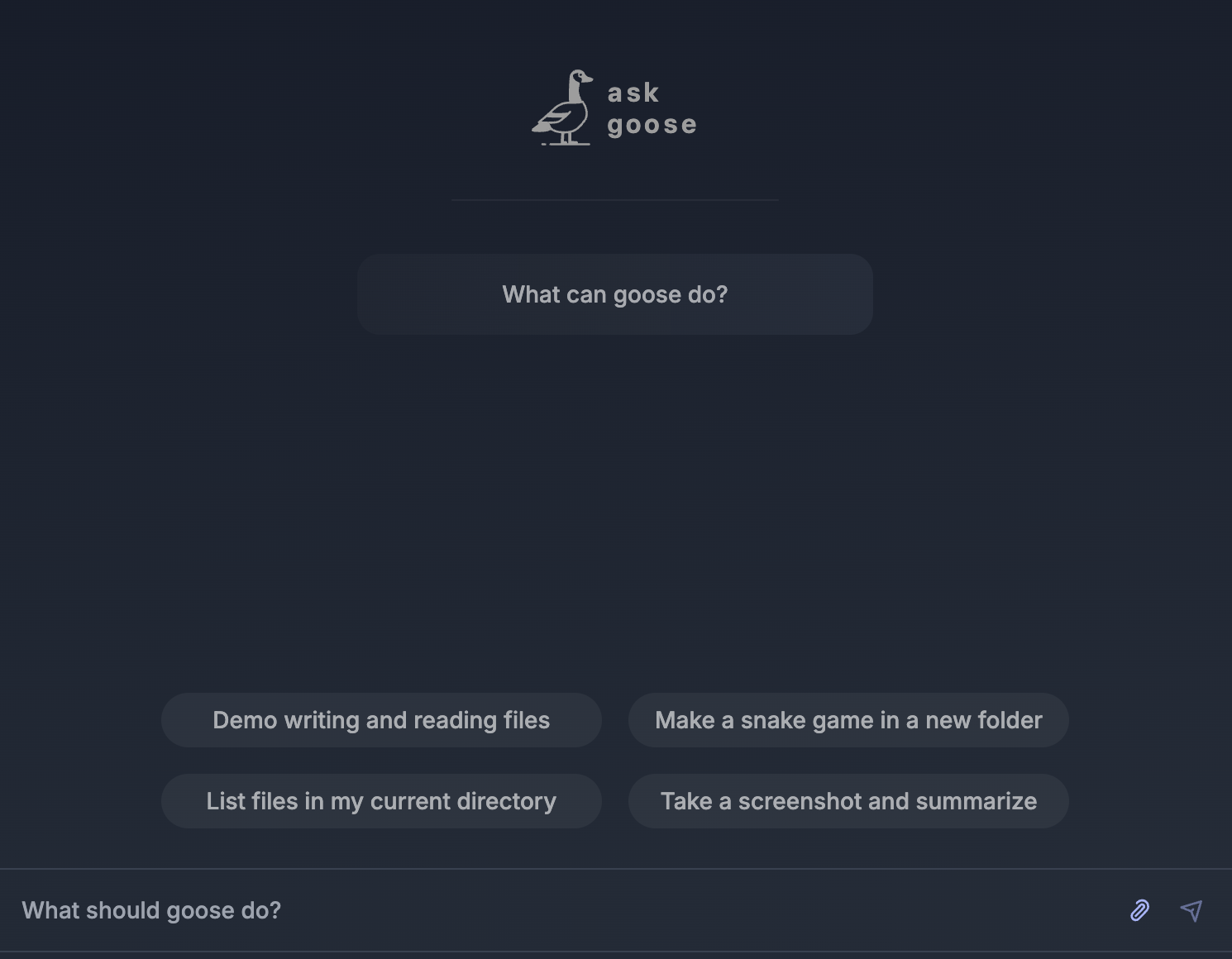
Install Extension
Write Prompt
From the prompt, you can interact with Goose by typing your instructions exactly as you would speak to a developer.
Let's ask Goose to make a tic-tac-toe game!
Goose will create a plan and then get right to work on implementing it. Once done, your directory should contain a JavaScript file as well as an HTML page for playing.
Install an Extension
While you're able to manually navigate to your working directory and open the HTML file in a browser, wouldn't it be better if Goose did that for you? Let's give Goose the ability to open a web browser by enabling the Computer Controller extension.
Go ahead and play your game, I know you want to 😂 ... good luck!
Next Steps
Congrats, you've successfully used Goose to develop a web app! 🎉
Here are some ideas for next steps:
- Continue your session with Goose and it improve your game (styling, functionality, etc).
- Browse other available extensions and install more to enhance Goose's functionality even further.
- Provide Goose with a set of hints to use within your sessions.